start with your notes.
use a PDF, a Word document, an Apple Pages file, or pasted text. Keep (NS) and (SS) markers when your notes already call out slide breaks.

bring this week’s sermon notes and your slide design. turn the message into an editable ProPresenter presentation, with room to check every point before Sunday.
use a PDF, a Word document, an Apple Pages file, or pasted text. Keep (NS) and (SS) markers when your notes already call out slide breaks.
upload a self-contained ProPresenter presentation or theme. An image can also serve as a reference while you match the design.
download a native .pro presentation. Open it in ProPresenter to make final adjustments on the computer you’ll use for the message.
here’s the path from your document to a presentation you can use.
choose your PDF, Word (.docx or .doc), or Pages (.pages) notes. You can also paste the text directly. Use a text-based PDF; scanned pages need OCR first.
if your notes use (NS) for a new slide and (SS) to continue the same slide, pro-msg keeps those groups together until a long passage needs more room.
choose an exported .pro presentation or a .protheme bundle containing one theme. use the built-in 20-layout sermon template or upload your own.
Separate fields support scripture references, passages, quotations, source credits, comparisons, and progressive points. Use static, self-contained templates; external media, live links, and animated builds aren’t bundled.
for a closer visual match, open “Match a finished sermon’s visual style” in the tool and choose a finished .pro or .probundle reference. Matching slides can guide placement, sizes, planned lines, and emphasis; media remains blank.
working from a picture? upload a PNG, JPG, or WebP reference and use the layout controls to match it. A reference image guides the design; it doesn’t automatically recover an exact editable template.
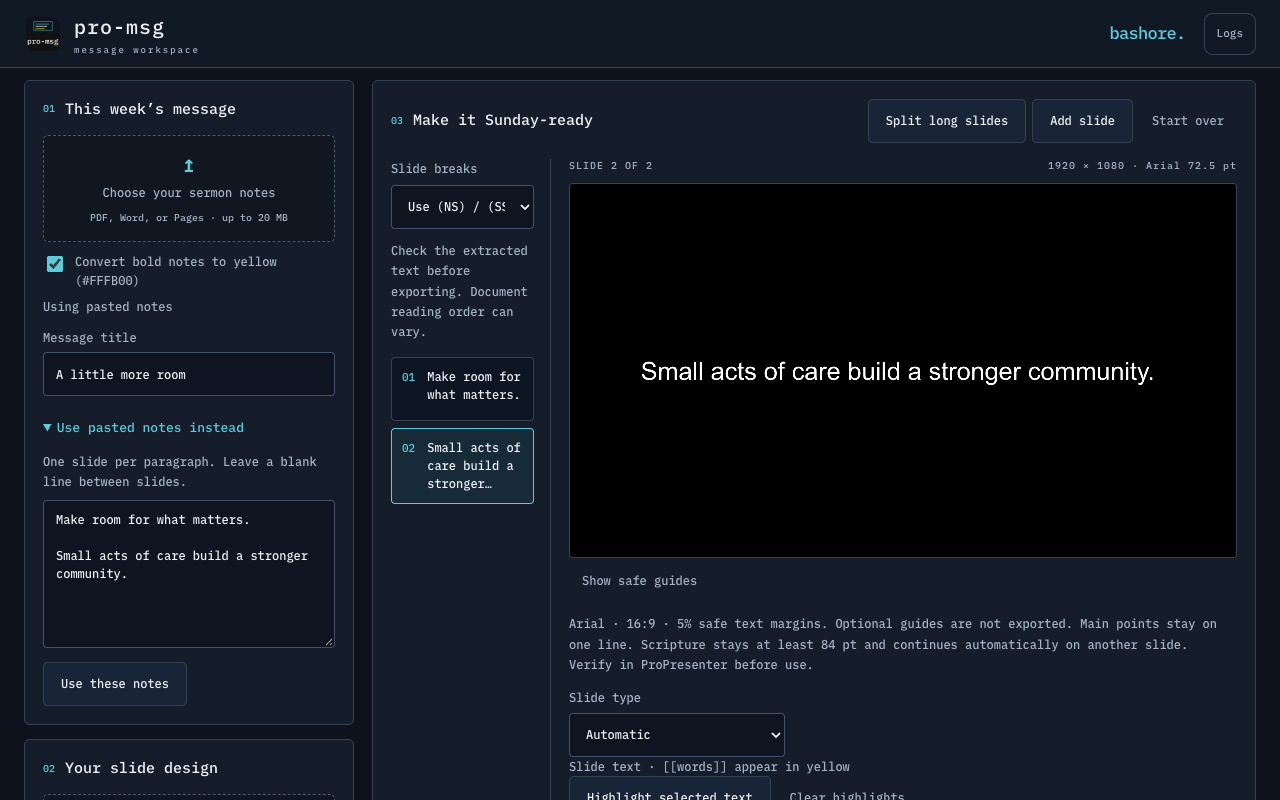
select any slide to edit its wording and layout. One-line mode keeps main points together. Planned statements and reference layouts preserve deliberate line breaks.
Intentional rows fit together at 84 pt or larger; longer lists continue between complete rows. A row that cannot fit at the minimum size needs shorter wording or a wider text box. Long scripture continues onto additional slides instead of dropping below 84 pt.
slides use each field’s template font on a 16:9 canvas, with black as the default background and text inside 5% safe margins. Yellow emphasis uses #FFFB00. Keep the bold-to-yellow option on, or select words in the editor and highlight them yourself.
image and video directions become blank slides, ready for media to be added in ProPresenter.
click Download .pro. In ProPresenter, choose File → Import → File and select the download. Check the presentation on your output before the service.
want to come back later? download an editable project, then use Open saved project in pro-msg to pick up where you left off.
prepare your message ↗your uploaded notes, templates, and images stay in your browser. There’s no sermon upload to a hosted processing service.
ProPresenter 7 or newer and the fonts used by your template installed. Native checks have been performed in ProPresenter 22 on macOS. Verify your own template and output before use.
Word yellow formatting is supported, and bold phrases can become yellow. PDF and Pages colors need to be marked in the slide editor. Use [[double brackets]] around words or the highlight button.
the preview uses the exported text, font sizes, line breaks, alignment, and highlight colors. The template font must also be installed locally for the browser preview. Native effects and font rendering can still differ. Check the imported presentation in ProPresenter.
bring the notes. bring the design. get the slides ready.
open pro-msg ↗